
Download Screenshot Plus Widget – fast, free screen capture tool for Mac
Overview
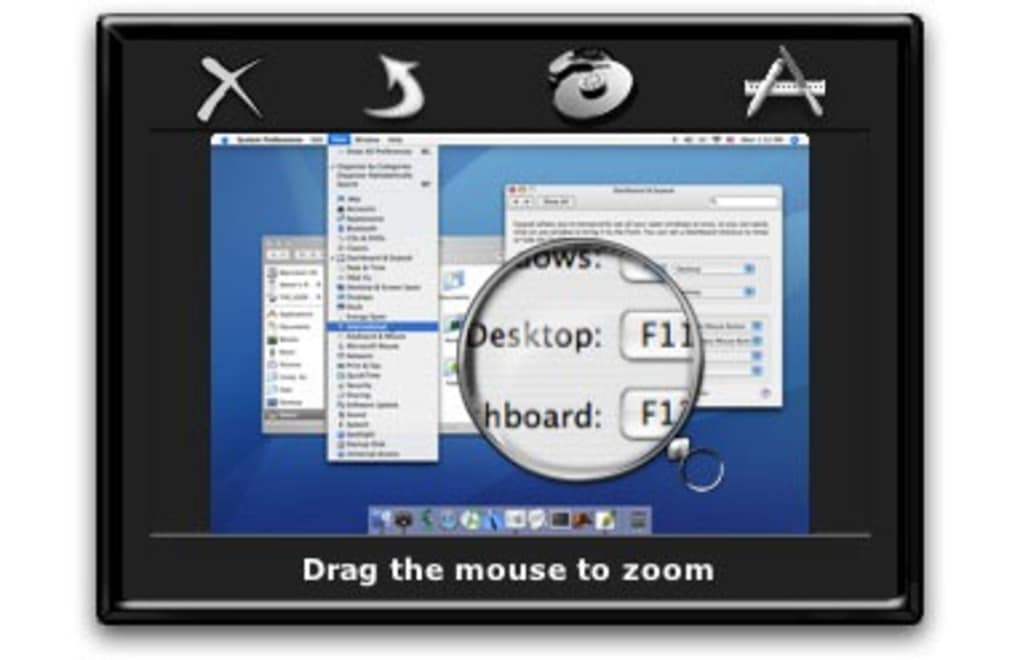
Screenshot Plus Widget is a lightweight, no‑frills screen capture utility designed exclusively for macOS. It lives in your menu bar, ready to snap a full‑screen, a selected region, a timed capture, or even the content of a specific widget with a single click. The app’s philosophy is simple: provide a reliable, secure way to take screenshots without the clutter of advertising, complex licensing, or unnecessary features.
Whether you are a designer preparing assets, a developer documenting bugs, or a teacher creating tutorials, Screenshot Plus Widget delivers crisp images in your preferred format—PNG, TIFF, JPG, PDF, or GIF. The tool has been praised for its stability after recent updates that improved timing accuracy and reduced startup latency. While it may not have the flash of some commercial alternatives, its consistent performance and tiny footprint have earned it a loyal user base.
Key Features & Benefits
- Full‑screen capture – instantly grab the entire display with one click.
- Selection mode – draw a rectangle to capture exactly the area you need.
- Timed screenshots – set a delay (1‑10 seconds) to capture pop‑ups or menus.
- Widget grab – directly capture the content of any macOS widget without extra steps.
- Multiple output formats – PNG, TIFF, JPG, PDF, GIF for maximum flexibility.
- Auto‑save & clipboard copy – choose to save to disk, copy to clipboard, or both.
- Customizable hotkeys – assign keyboard shortcuts for instant capture.
- Lightweight footprint – consumes minimal RAM and CPU, keeping your Mac fast.
- Secure and ad‑free – no telemetry, no ads, and updates are signed.
- Easy sharing – drag‑and‑drop from the widget to Mail, Messages, or social apps.
Pros
- Very small size; runs quietly in the menu bar.
- Fast capture speed once loaded.
- Supports all common image formats, including PDF for vector‑friendly output.
- Timely updates have fixed earlier stability issues.
- No subscription or hidden fees.
Cons
- Initial launch can take a few seconds on older Macs.
- Lacks built‑in annotation tools (must use a separate app for markup).
- No Windows or Linux version – macOS‑only.
- Limited advanced options compared to premium tools like Snagit.
- Occasional selection glitches that require switching to timed mode.
Review Summary: Screenshot Plus Widget offers exactly what its name promises – a quick, reliable way to capture your Mac screen without the bloat of larger suites. Its simplicity is its strongest asset, making it ideal for users who want a “set‑and‑forget” solution. While power users may miss native annotation, the app’s free price point and solid performance outweigh the minor drawbacks.
Installation, Usage & Compatibility
Step‑by‑step installation
- Visit the official website or the Mac App Store and click the Download button for Screenshot Plus Widget.
- Open the downloaded
.dmgfile and drag the app icon to your/Applicationsfolder. - Launch the application; macOS will ask for permission to access your screen—grant this under System Settings → Privacy & Security → Screen Recording.
- After granting permission, the widget appears in the menu bar as a tiny camera icon.
- Open the widget’s preferences (click the icon → Preferences) to set your default format, hotkeys, and save location.
Using the widget
- Full‑screen: Click the camera icon and choose “Full Screen.” The screenshot is saved instantly.
- Selection: Choose “Selection,” then click and drag on the screen. Release to capture; the image is copied to the clipboard and/or saved.
- Timed capture: Select “Timed,” set the delay, and the widget will hide before the shot, allowing you to open menus or tooltips.
- Widget grab: Pick “Widget,” then click the specific macOS widget you wish to capture. This is perfect for quick weather or calendar snapshots.
Compatibility
Screenshot Plus Widget is built for macOS 11 (Big Sur) and later, including macOS Monterey, Ventura, and Sonoma. It runs natively on both Intel‑based and Apple Silicon (M1, M2) Macs, automatically selecting the appropriate binary for optimal performance. The app does not currently support Windows, Linux, Android, or iOS platforms. Users on older macOS versions may experience slower startup times, but the core capture functions remain functional.
Frequently Asked Questions
Can I capture screenshots of protected content (e.g., DRM‑protected video)?
No. Screenshot Plus Widget respects macOS’s DRM restrictions, so it cannot capture protected video streams or secure windows. It works best with regular desktop applications and widgets.
Is there a way to add annotations directly inside the app?
The current version focuses on capture only. For annotation, you can open the saved file in Preview, Markup, or a dedicated editor like Skitch.
How do I change the default save location?
Open the widget’s Preferences, go to the “General” tab, and click the “Save To” dropdown to choose Desktop, Pictures, or a custom folder.
Does the app work on Apple Silicon Macs?
Yes. The installer includes a universal binary that runs natively on M1, M2, and later chips, delivering fast startup and low CPU usage.
Is there a free trial or paid version?
Screenshot Plus Widget is completely free. There are no hidden fees, subscription plans, or premium tiers.
Conclusion & Call to Action
For macOS users who need a straightforward, dependable screen capture solution, Screenshot Plus Widget hits the mark. Its menu‑bar presence, multiple capture modes, and flexible output formats make it a practical companion for daily workflows. While power users may miss advanced editing features, the app’s free price tag and minimal resource footprint compensate handsomely. If you’re looking to replace clunky, ad‑laden capture tools, give Screenshot Plus Widget a try – download it today, grant screen‑recording permission, and start snapping high‑quality screenshots in seconds.
Download Screenshot Plus Widget now and experience a cleaner, faster way to capture your Mac screen.







